
Transfer Data from Poets to Alumni Google Accounts
Note: This guide assumes that you have already obtained access to an @alumni.whittier.edu account, which can be used as a receiving email address for your retiring @poets.whittier.edu email and data.
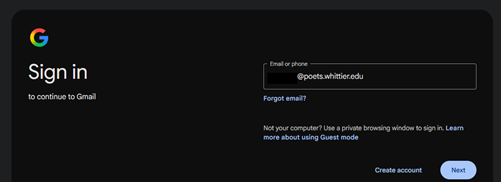
1. Sign in to Google Takeout with a Poet email account:
https://takeout.google.com/transfer
2. Click the top right corner to make sure Google Takeout is referencing the correct source account (Poets). Enter your @alumni email address in the destination account section.
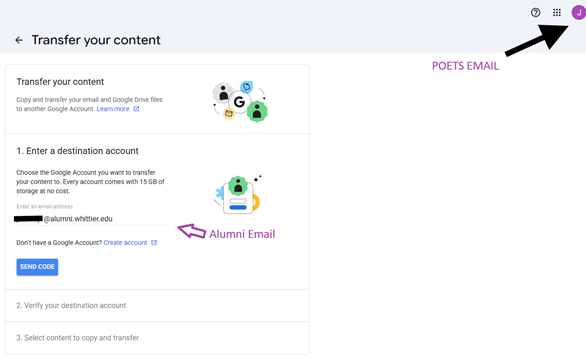
3. Click SEND CODE and verify your @alumni email address using a private/incognito window or a different browser to avoid mixing Google accounts.
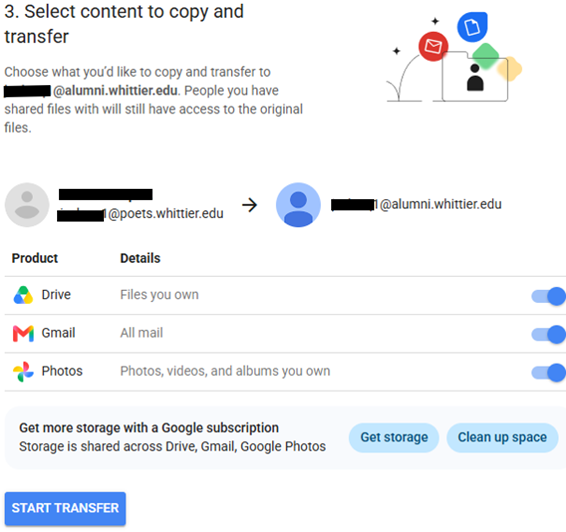
4. Select the data you want to copy from Poets to Alumni and click START TRANSFER (data will not be automatically deleted from Poets account after the transfer).
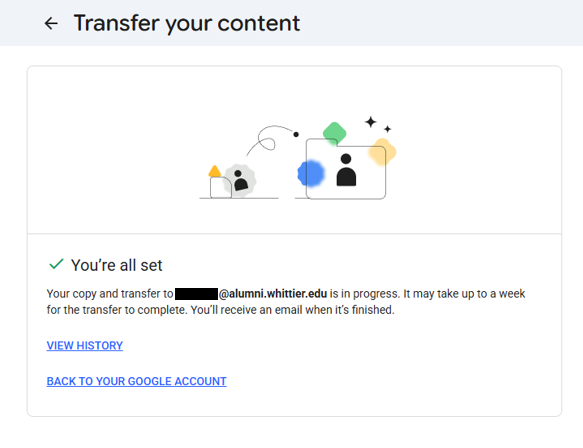
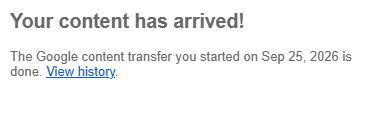
5. Your data transfer will begin and can take up to a week to complete. Check your Alumni email account periodically to see the status of the transfer.
6. Visit your alumni account to ensure all of the data you needed was transferred.
Contact IThelp@whittier.edu if you require assistance with these steps. If you need to help accessing or requesting an alumni email account, please contact alumni@whittier.edu.